Extract
The Extract form launches the GONet Wizard extraction tool from the graphical interface.
Note
This page explains how to configure and launch extraction from the GUI.
To learn what extraction does, how extraction regions work, and how to interpret the output products, see extraction tool guide.
Overview
The Extract form is used to select one or more GONet files, choose the color channels to measure, define an extraction region, and save the resulting measurements.
The form supports two workflows:
Interactive extraction, where the dedicated extraction GUI opens and the region is selected visually.
Direct extraction, where all required geometric parameters are provided in the form and extraction starts immediately.
Interactive Extraction
Interactive mode is used when the extraction region should be selected visually.
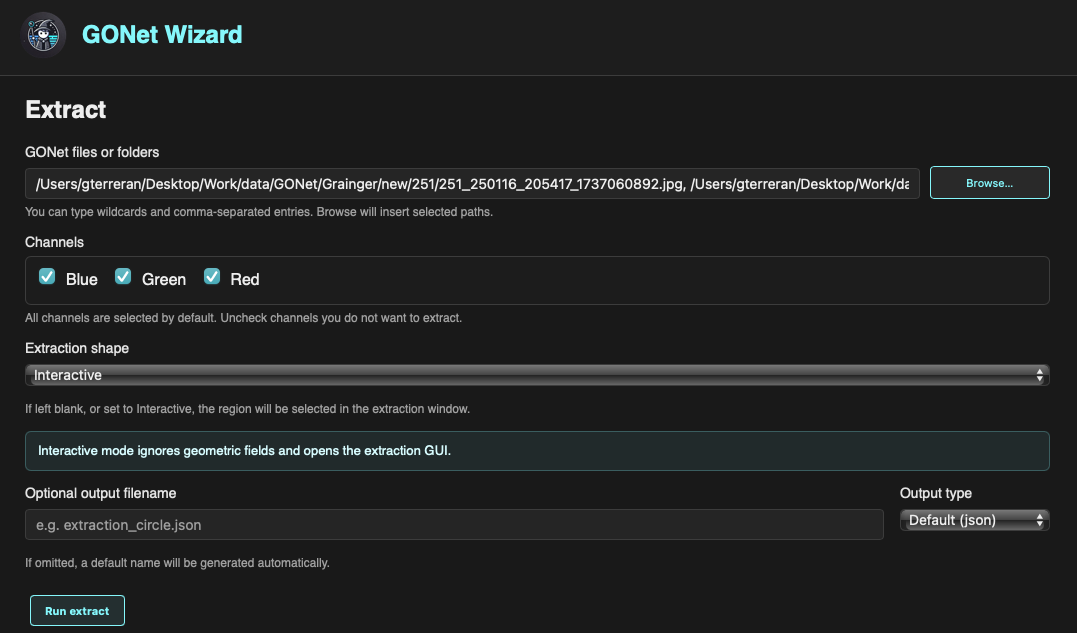
Extract form configured for interactive extraction.
When Interactive is selected as the extraction shape, geometric parameter fields are ignored and the dedicated extraction GUI opens after clicking Run extract.
This workflow is useful when the region of interest is easier to define while looking at the image.
Direct Extraction
Direct extraction is used when the extraction geometry is already known.
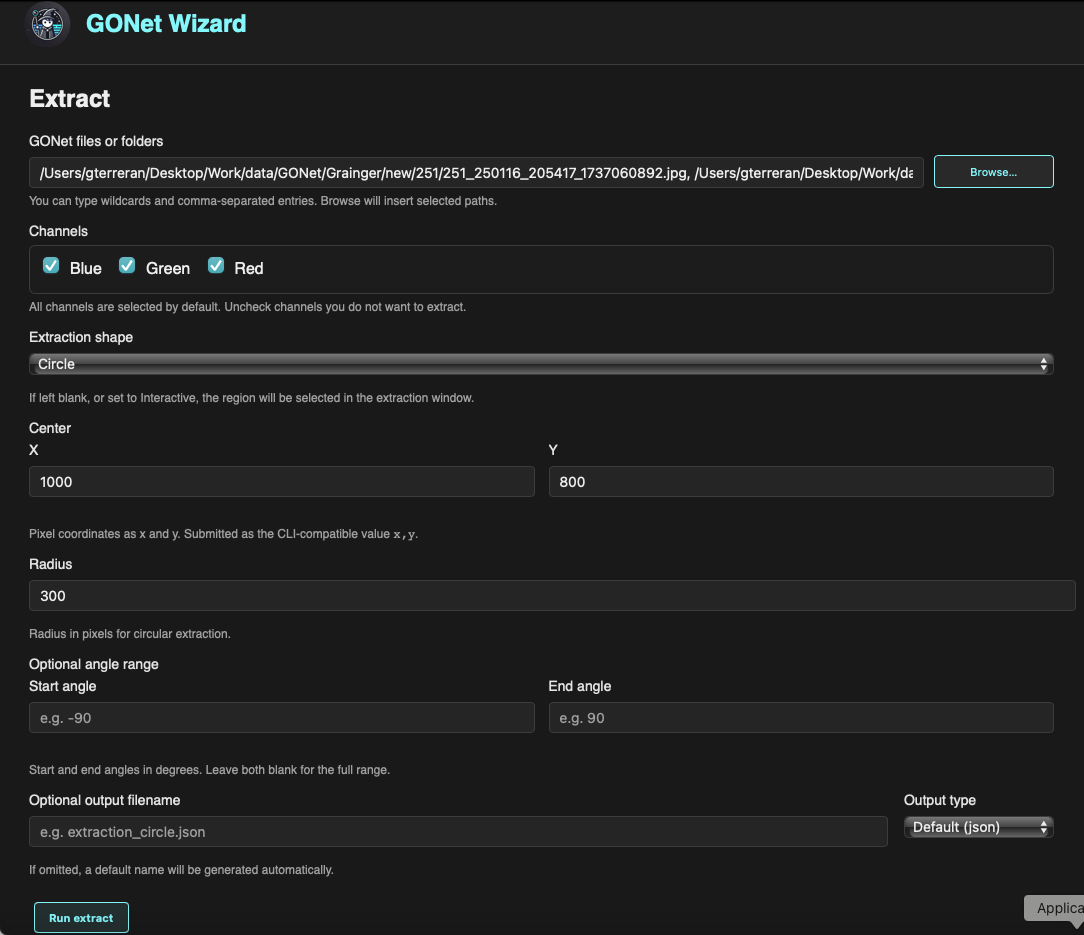
Extract form configured for direct circular extraction.
When a geometric shape is selected, the required parameters for that shape must be provided in the form. If the parameters are valid, extraction starts directly without opening the interactive extraction GUI.
This workflow is useful for repeated measurements, scripted-style processing, or cases where the same extraction geometry should be applied to many files.
Selecting Files
The GONet files or folders field defines the input images.
Files can be selected in two ways.
Typing Paths
Paths may be typed directly into the text field.
The field supports:
Single file paths.
Folder paths.
Comma-separated entries.
Wildcards.
This makes it possible to extract measurements from several files or groups of files without using the file browser.
Browsing for Files
The Browse… button opens a file picker.
Multiple files may be selected at once. When the selection is confirmed, the selected paths are inserted into the input field automatically.
Channel Selection
The Channels section controls which Bayer channels are extracted.
The available channels are:
Blue
Green
Red
All channels are selected by default.
Uncheck any channel that should not be included in the extraction output.
For more information about GONet channels, see channels user guide.
Extraction Shape
The Extraction shape field controls whether extraction is performed interactively or directly.
Interactive
The interactive option opens the dedicated extraction GUI.
In this mode, geometric fields in the form are ignored. The extraction region is selected inside the extraction window instead.
Circle
Circular extraction requires:
Center
XCenter
YRadius
The center coordinates and radius are specified in pixels.
Rectangle
Rectangular extraction requires the rectangle parameters displayed by the form.
The selected rectangle is applied to every input file and selected channel.
Annulus
Annular extraction requires:
Center
XCenter
YInner radius
Outer radius
The center coordinates and radii are specified in pixels.
Optional Angle Range
Some geometric extraction shapes support angular limits.
If the angle fields are left blank, the complete shape is used.
If start and end angles are provided, only the corresponding sector of the shape is extracted.
Angles are specified in degrees.
Output Filename
The Optional output filename field controls where the extraction results are saved.
If the field is left blank, GONet Wizard generates a default output filename automatically.
If a filename is provided, the extraction results are written to that file.
Output Type
The Output type field controls the output format.
Available output formats include:
JSON
CSV
JSON is the default output format.
For details about the structure of extraction outputs, see extraction tool guide.
Running the Extraction
To run an extraction:
Select one or more files or folders.
Choose the channels to extract.
Select an extraction shape.
Use Interactive mode or provide the required geometric parameters.
Optionally provide an output filename.
Select the output type.
Click Run extract.
Depending on the selected workflow, GONet Wizard either opens the interactive extraction GUI or starts the extraction directly.
Extraction Feedback Terminal
The Extract form includes an Extraction feedback terminal panel below the form controls. This panel is the primary place to watch extraction progress when running from the GUI, especially when using a packaged desktop app where no separate terminal window is visible.
The terminal panel shows:
the command equivalent submitted by the form;
live progress output while files are processed;
warnings and informational messages from GONet Wizard;
error messages and traceback details when extraction fails;
the full path to the JSON or CSV file written at the end of a successful run.
Terminal text is selectable, so paths, warnings, and tracebacks can be copied for debugging or reporting issues.
For Interactive extraction, the region-selection window closes as soon as Extract is clicked. Processing then continues in the main Extract form’s feedback terminal so the user has a single place to follow progress and confirm where the output file was saved.
Relationship to the CLI
The Extract form is the graphical frontend for the extract command.
Both interfaces use the same processing engine and produce the same extraction products.