Inspect Images
The image inspection tool allows users to explore both the visual appearance and the underlying sensor measurements contained in GONet observations.
Unlike conventional image viewers, GONet Wizard can display the individual Bayer channels recorded by the camera sensor, making it possible to inspect both processed imagery and the underlying RAW data.
The tool is designed not only for image viewing, but also for comparison and exploration across multiple observations.
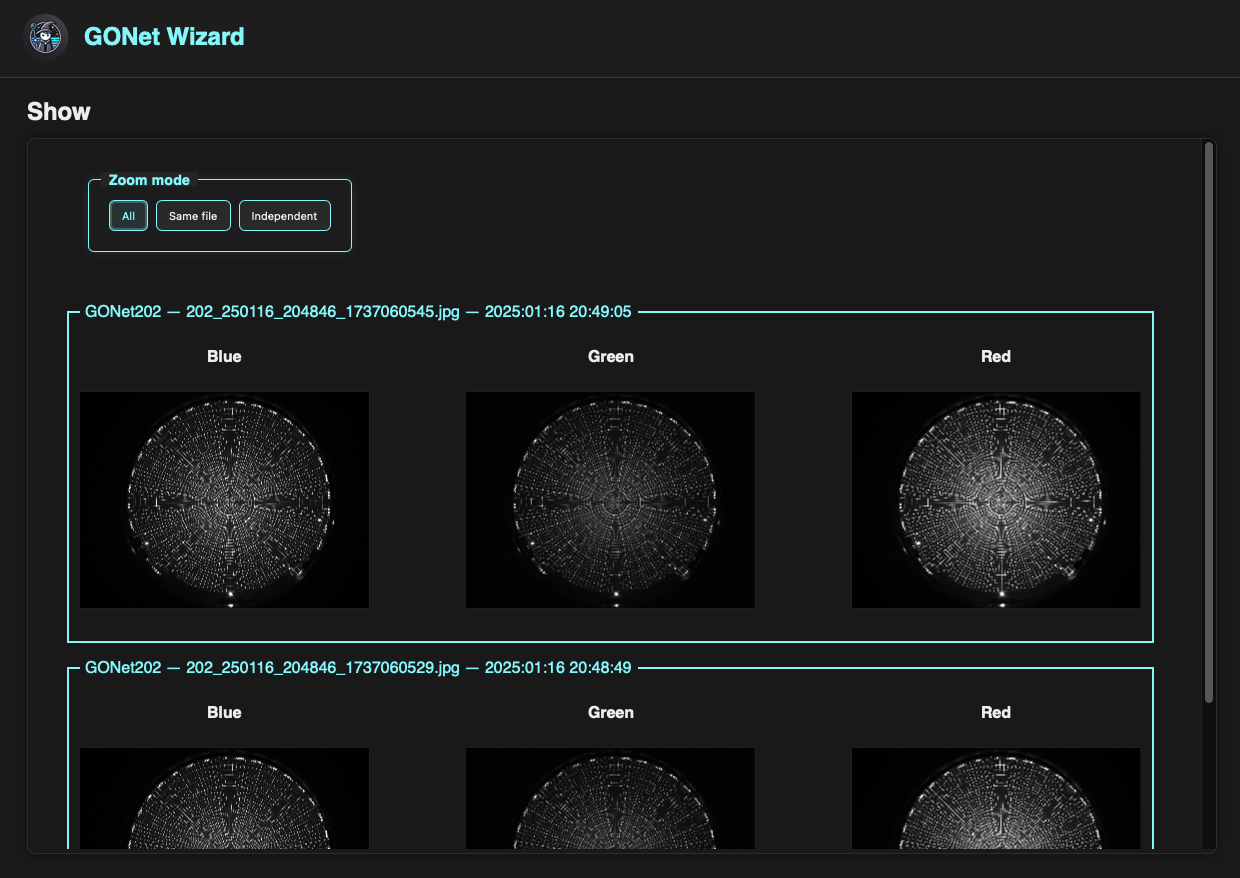
The image inspection tool displaying multiple observations and Bayer channels.
Typical Uses
The image inspection tool is commonly used to:
Evaluate image quality.
Compare multiple observations.
Identify saturated regions.
Inspect Bayer channels individually.
Verify focus and exposure.
Explore image features before performing measurements.
Supported Files
Image inspection works with original RAW .jpg GONet images,
as well as with derived products like converted .tiff files.
Multiple Files
Multiple images can be displayed simultaneously within the same viewer.
Each selected file is displayed in its own section and can be inspected independently or compared against other observations.
When several files are loaded, the viewer becomes a powerful comparison tool for studying changes between observations, evaluating image quality, or tracking the evolution of a scene over time.
Warning
GONet images contain both JPEG and RAW Bayer data and can be relatively large (approximately 20 MB per file).
Loading a large number of images simultaneously may significantly increase memory usage and reduce responsiveness.
Channel Selection
The displayed channels can be selected by the user.
By default, the viewer displays the Blue, Green, and Red Bayer channels, but alternative channel combinations may also be displayed depending on the selected visualization mode.
The same channel selection is applied to all loaded images.
When multiple files are displayed simultaneously, identical channels are aligned in the same column. This makes it easy to compare the same Bayer channel across multiple observations.
For a detailed discussion of channels, see channels user guide.
Zoom Synchronization Modes
When multiple images and channels are displayed, the viewer can synchronize zoom operations across related plots.
Three synchronization modes are available.
All
The default mode.
Zooming or panning any image updates every displayed channel of every loaded file.
This mode is useful when comparing multiple observations of the same target.
Same File
Zoom operations are synchronized only between channels belonging to the same image.
This mode is useful when comparing Bayer channels within a single observation while allowing different files to remain independent.
Independent
Zoom operations affect only the selected plot.
No synchronization is performed.
This mode is useful when examining different regions of different images simultaneously.
Accessing the Tool
The image inspection tool can be accessed through both the graphical user interface and the command-line interface.
See:
Where to Go Next
Need |
Page |
|---|---|
Launch image inspection from the GUI |
|
Run image inspection from the terminal |
|
Understand Bayer channels |
|
Review the implementation API |