Dashboard
The Dashboard form launches the GONet Dashboard from the graphical interface.
Note
This page explains how to launch the dashboard from the GUI.
To learn what the dashboard does after it opens, including plotting, filtering, point selection, and export behavior, see dashboard tool guide.
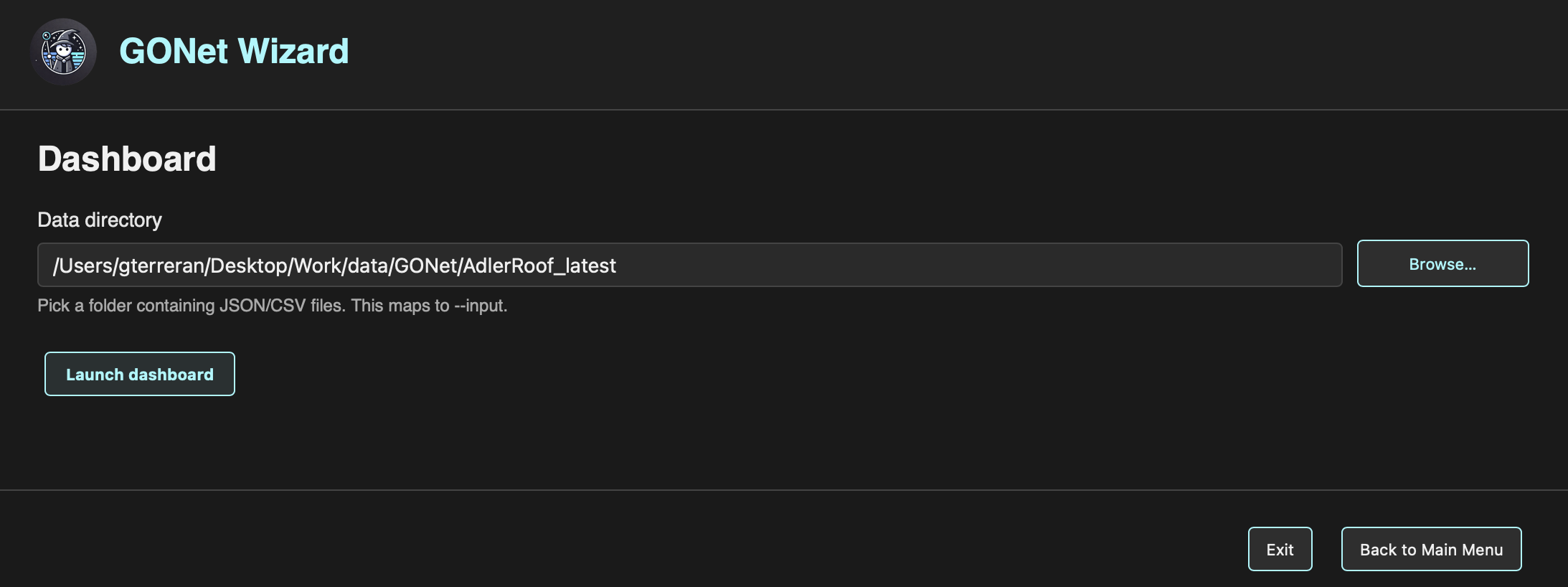
Dashboard form in the GONet Wizard graphical interface.
Overview
The Dashboard form is used to select a folder containing extracted data products and launch the interactive dashboard.
Unlike the image inspection, metadata inspection, and extraction forms, the dashboard works primarily with directories rather than individual image files.
The selected data directory should contain the JSON or CSV files that will be loaded into the dashboard.
Selecting the Data Directory
The Data directory field defines the folder containing the dashboard input files.
This folder should contain JSON or CSV data products produced by GONet Wizard, such as extraction outputs.
The directory can be selected in two ways.
Typing a Folder Path
A folder path may be typed directly into the text field.
Browsing for a Folder
The Browse… button opens a folder picker.
When the folder is selected, its path is inserted into the input field automatically.
Image Previews
The dashboard can show the GONet image associated with a selected plotted point.
No separate images directory is required. The dashboard reads the full image
path from the filename field stored in the loaded extraction JSON products.
If the file cannot be found or opened, the dashboard displays a non-breaking
File not found message in the image-preview area.
Launching the Dashboard
To launch the dashboard:
Select a data directory containing JSON or CSV files.
Click Launch dashboard.
The dashboard opens in a dedicated window.
Relationship to the CLI
The Dashboard form is the graphical frontend for the dashboard command.
Both interfaces use the same dashboard application and load the same data products.